GE Universal Remote Codes: How to Find and Use the Right One
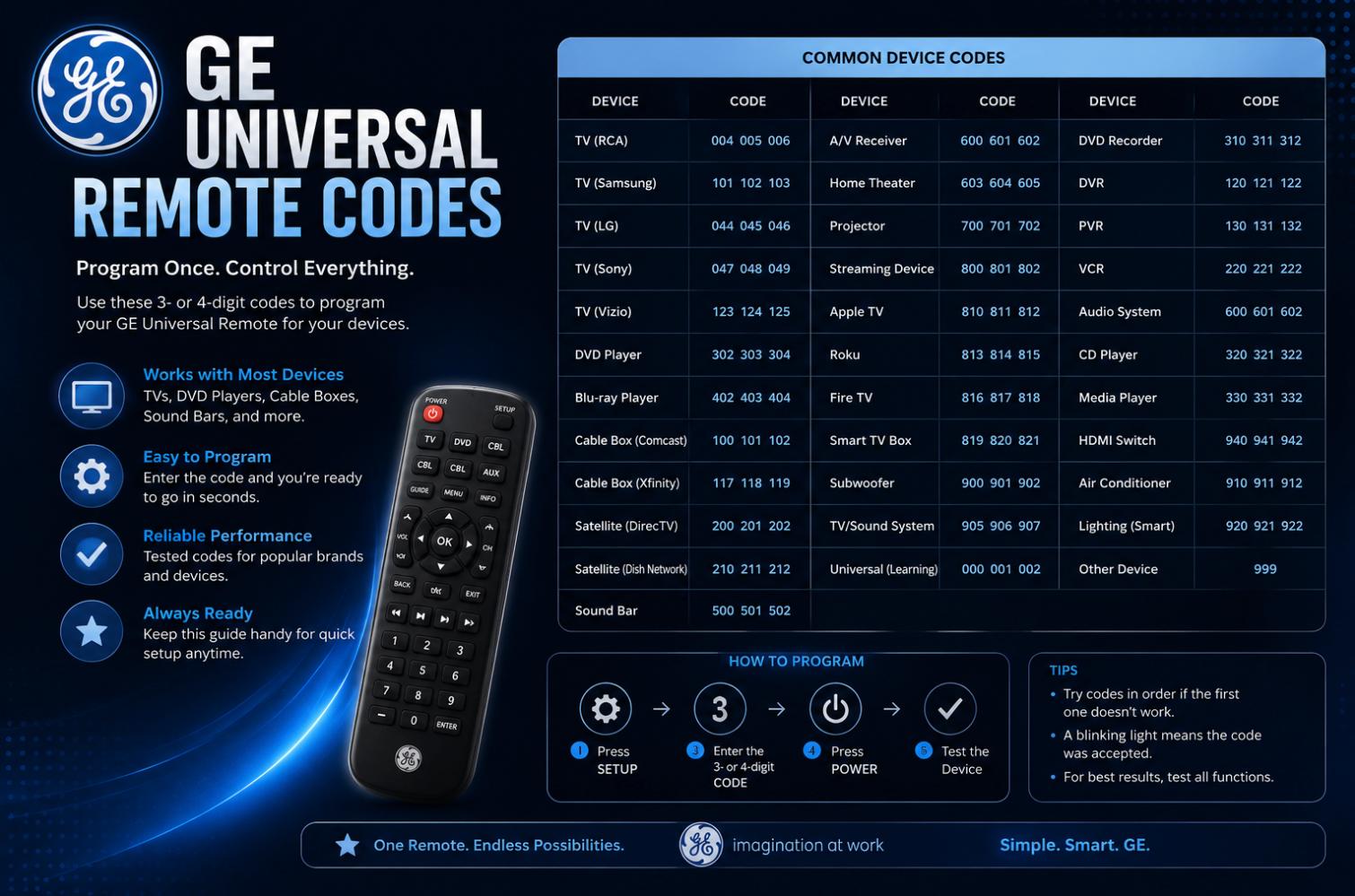
GE universal remotes are among the most widely sold consumer universal remote lines, distributed under the GE brand across several generations of models. Getting one to actually control your TV, cable box, streaming device, or sound bar requires programming it with a specific code that tells the remote which device it is trying to control. The codes are the small numeric strings you enter to make the pairing work. This piece walks through where the codes actually live, how to find the right one for your specific setup, and the specific methods that produce a working pairing when the printed code list falls short.
Where the codes come from
GE universal remotes ship with a printed code list, either in the box or on the manufacturer’s website. Each code maps to a specific device brand — one code (or several) for Samsung TVs, another for LG, another for a Vizio soundbar, and so on. The codes have been maintained across product lines over the years, though the specific numbers vary by remote model and by generation.
The current GE brand is owned by Jasco Products, which manufactures the remotes and maintains support materials for them. Jasco’s website hosts code lookup tools organised by remote model number — the four-digit or five-digit model number printed on the back of the remote or on the packaging. Knowing your remote’s model number is the first practical step before searching for any code.
Finding your remote’s model number
The model number is printed in a small typeface on the back of the remote, usually near the battery compartment. Common models include the GE 24993, 33709, 34457, 24927, and various successors, each with its own code table. If the model number has worn off through use, the original packaging or the store receipt may still carry it. If neither is available, the codes for most GE remotes overlap substantially — trying codes from a similar-vintage remote often works even without exact model identification.
The specific pairing process
The pairing process differs slightly across GE remote models but follows a consistent shape.
- Turn on the device you want to control (TV, cable box, streaming device, sound bar, or other).
- Press the Setup button on the remote and hold it until a small light on the remote turns on and stays on. On most GE models this is a red LED near the top of the remote.
- Press the device-type button that matches your device — TV for a television, DVD for a DVD player, AUX for other devices, CBL/SAT for a cable box or satellite receiver.
- Enter the four- or five-digit code for your device brand using the number buttons. The LED should turn off if the code was accepted.
- Test the remote by pressing the power button. If the device turns off, the code worked. If not, restart the process with a different code from the list for your device brand.
Each brand often has multiple codes because the brand’s product line spans different technology generations that use different infrared command sets. Trying each code in the list for your brand is the standard troubleshooting step when the first code does not work.
When the printed code list does not work
Sometimes none of the codes on the printed list produce a working pairing. This happens for specific reasons and has specific solutions.
Newer devices may not be covered by older code lists. A television released in 2025 may not appear in the code list of a remote manufactured in 2020. In this case, the auto-search or code-search mode on the remote is the fallback.
Auto-search mode tests every code in the remote’s memory sequentially against the device until one produces a response. To activate it on most GE remotes, press Setup until the LED stays on, press the device button, then press the number 991 (or 9-9-1) and then the power button. The remote cycles through codes; when the device responds (typically by turning off), pressing Enter or Setup locks in the code that worked.
Auto-search takes time — the remote may cycle through hundreds of codes before finding a match. It also requires the device to be in a state where its response is visible; keeping the device on with a clear view of its power light is the practical setup.
The specific brands and their code patterns
Some patterns are worth knowing about specific brands, as knowing them shortens the search.
Samsung TV codes for GE remotes historically include codes like 0080, 0060, and 5182 depending on the specific model line. Older CRT-era Samsungs, mid-generation flat panels, and current smart TVs may each use different codes, and trying all Samsung codes in a code list is standard practice.
LG TV codes have included 0056, 0057, 0080, and 2358 across various product generations. Similar to Samsung, LG’s product line has been long enough that multiple codes are usually needed to cover different vintages of LG televisions.
Vizio, Sony, TCL, Hisense, and other major TV brands each have their own code lists on GE remote lookup tools. Newer brands (like some Chinese-manufacturer TVs sold under regional labels) sometimes require the auto-search fallback because the specific brand is not listed.
Cable box and streaming device brands (Comcast/Xfinity, Spectrum, DirecTV, Dish, Roku, Amazon Fire TV, Google TV, Apple TV) each have their own code sets. Streaming devices in particular sometimes require a specific device-type mode on the remote that older GE models may not support.
Practical troubleshooting
Beyond the code list itself, a few practical habits improve the odds of a smooth pairing.
Replace the batteries before starting. A remote with weak batteries may not send strong enough infrared signals to reach the device, and failed pairings can be misdiagnosed as wrong-code issues when the actual problem is battery voltage.
Point the remote directly at the device. Universal remotes send infrared signals in a specific cone; devices with their IR receiver on the side or in an unusual position may need the remote pointed carefully.
Remove obstacles between the remote and the device. Coffee tables, glass surfaces, or reflective materials can interfere with infrared transmission.
Check for the correct device-type button. Trying to pair a soundbar using the CBL button will not work; the remote needs to be told which device category to program for.
Reset the remote if a pairing goes wrong. On most GE remotes, holding the Setup button until the LED stays on, then pressing 981 or 977 (varies by model), then a specific device button, clears the current programming for that device slot. This is useful if you have programmed the wrong code and want to start over.
Where to find the current authoritative code list
The authoritative source for GE remote codes is Jasco’s own support website. The specific URL varies by generation, but a search for “GE universal remote codes” plus your specific remote model number reliably surfaces the current Jasco-hosted lookup tool. That tool is more current than any third-party list and organised by remote model, which reduces error.
Third-party sites that host GE remote codes exist and can be useful as backup, but they age quickly. A code list on a random consumer-electronics blog from 2018 may not have the codes for TVs released after that date. Preferring the Jasco lookup tool when available is the reliable habit.
If Jasco’s site is unavailable or the specific model is not found, calling Jasco’s support line is a fallback. The company has historically been responsive to code-lookup requests for specific devices and can sometimes provide codes for newer devices that have not yet been added to the printed lists.
Streaming, HDMI-CEC, and where remotes are heading
An observation worth carrying forward is that the era of universal remotes is quietly shrinking as consumer electronics converge on different control paradigms.
HDMI-CEC (Consumer Electronics Control) is a specification that allows connected devices to control each other over the HDMI cable itself. Turning on your Xbox turns on your TV; turning on your Blu-ray player automatically switches the TV to the correct input. This significantly reduces the need for a separate universal remote in many home setups.
Smart TV remotes have grown to control more of the entertainment stack directly. A modern Samsung, LG, or Sony TV remote often handles the TV, the connected sound bar, and via HDMI-CEC the streaming boxes as well. A dedicated universal remote may not add much beyond what the TV’s own remote already covers.
Voice assistants (Alexa, Google Assistant, Apple’s HomePod ecosystem) increasingly control home entertainment devices without any physical remote at all. A voice command replaces multiple button presses.
Smartphone apps for specific devices provide remote functionality that a universal remote would once have covered. Apple TV, Roku, Fire TV, and various sound bar brands all have official apps that turn a phone into a device-specific remote with features the physical remote does not offer.
None of this means universal remotes are obsolete. They still serve well in homes with older devices, in households where a single physical remote is preferred over voice or app control, and in specific scenarios where the smart-TV ecosystem does not cover every device. But the specific role universal remotes played twenty years ago has been reduced by the wider capabilities of modern consumer electronics.
A short close
GE universal remote codes are a small piece of consumer-electronics infrastructure that has been maintained across decades of product releases. Getting a remote paired correctly with a specific device involves a code lookup, the specific pairing process, and, when the printed lists fall short, the auto-search fallback. None of it is complicated, but it is easy to give up after the first code fails when the correct approach is to try the second, third, and fourth codes in the list before moving to auto-search. Patience — plus fresh batteries — solves the vast majority of GE remote code problems.