MyOLSD: What the Olentangy Portal Is and How to Use It
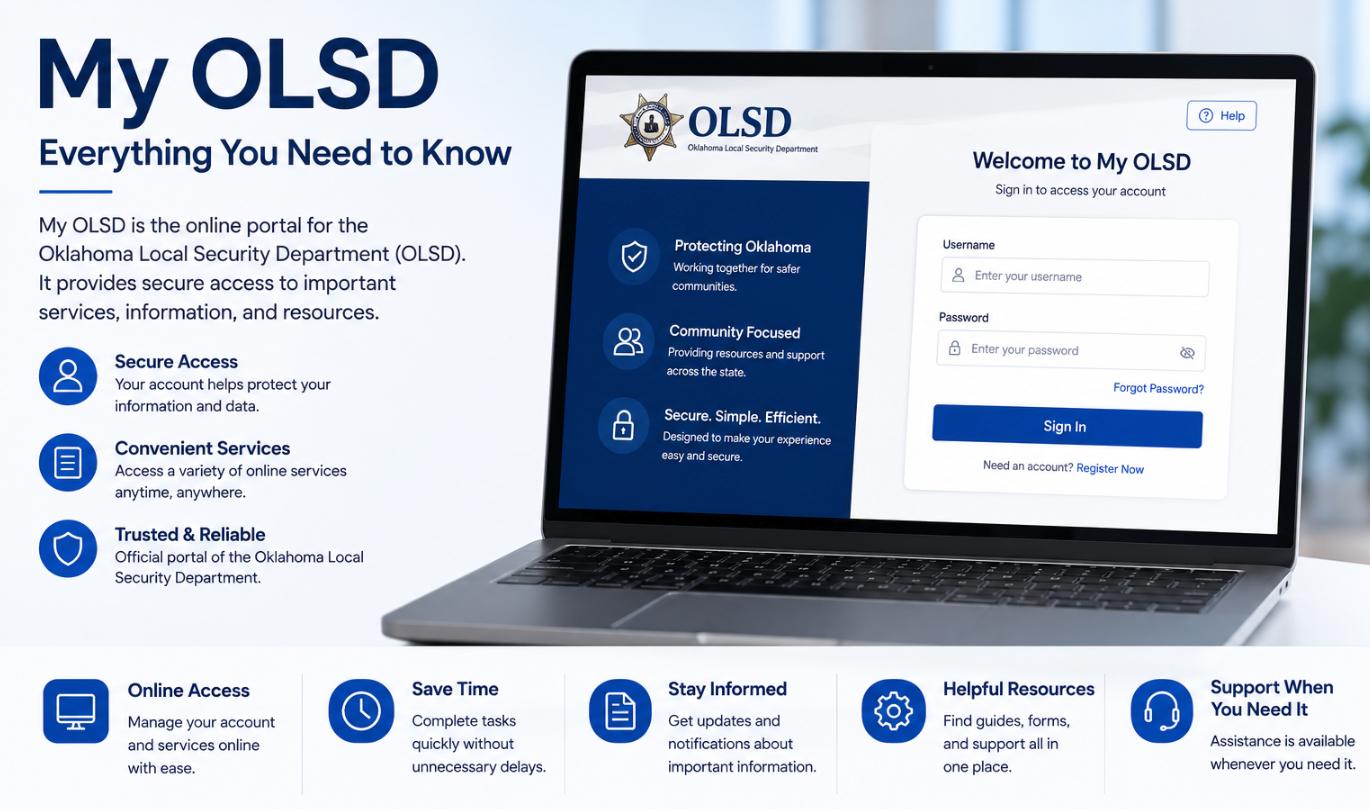
MyOLSD is the Olentangy Local School District’s single sign-on portal, and the reason it turns up so often in search bars is a mix of the ordinary — students, parents, and staff needing to reach the tools they use daily — and the specific: a growing district with tens of thousands of users hitting the same landing page every morning during a school year. This piece covers what the portal is, who uses which parts of it, how to get in when things break, and a small set of practical notes for parents and students trying to make sense of a modern school digital stack that has grown considerably over the past decade.
What MyOLSD actually is
MyOLSD is the branded name for the Olentangy Local School District’s identity portal — the shared login that authenticates users into the district’s suite of educational and administrative tools. Behind the single sign-on, users reach a set of destinations that vary depending on role.
The primary URL for the portal is my.olsd.us. Some tools accessible through it also have their own direct URLs, but the portal remains the recommended entry point because it handles the authentication and reduces the number of separate passwords a user has to manage.
The portal launches into different toolsets for different roles. A short summary:
| Role | What the portal opens onto |
|---|---|
| Students | Learning platforms, email, digital textbooks, Chromebook management, class-specific tools, calendars |
| Parents and guardians | Student information (grades, attendance, enrolment), lunch account management, forms, school communications |
| Staff and teachers | Gradebook, student information system, curriculum tools, HR/benefits, communication systems |
| Substitute and support staff | Limited-permission views for scheduling, communication, and payroll |
Different districts wrap their SSO portals differently, but the underlying pattern — one login, many downstream tools — has become standard across US K-12 school technology since roughly the mid-2010s. Olentangy’s implementation is more polished than most because the district is large enough to justify sustained investment in the platform, and district IT has visibly iterated on the experience over time.
Getting in — the login basics
Credentials come from the district, not from any external service. Students and staff are provisioned automatically at enrolment or hire; parents and guardians usually receive credentials at registration and can request them from the district if they never received them or lost them.
The login combines a district-issued username with a password. Multifactor authentication is enforced for staff accounts and optional or role-dependent for students and parents. Once authenticated, the portal issues session tokens that carry across the linked tools, so users do not need to log in separately to each destination in most cases.
A note on Chromebooks, which are the primary student device in Olentangy as in most Ohio districts: signing into a district-managed Chromebook with the school Google account automatically signs the user into MyOLSD-linked tools that support Google SSO, which is most of them. Students who understand this can move from a locked Chromebook to a working session in under a minute.
Common problems and how to work through them
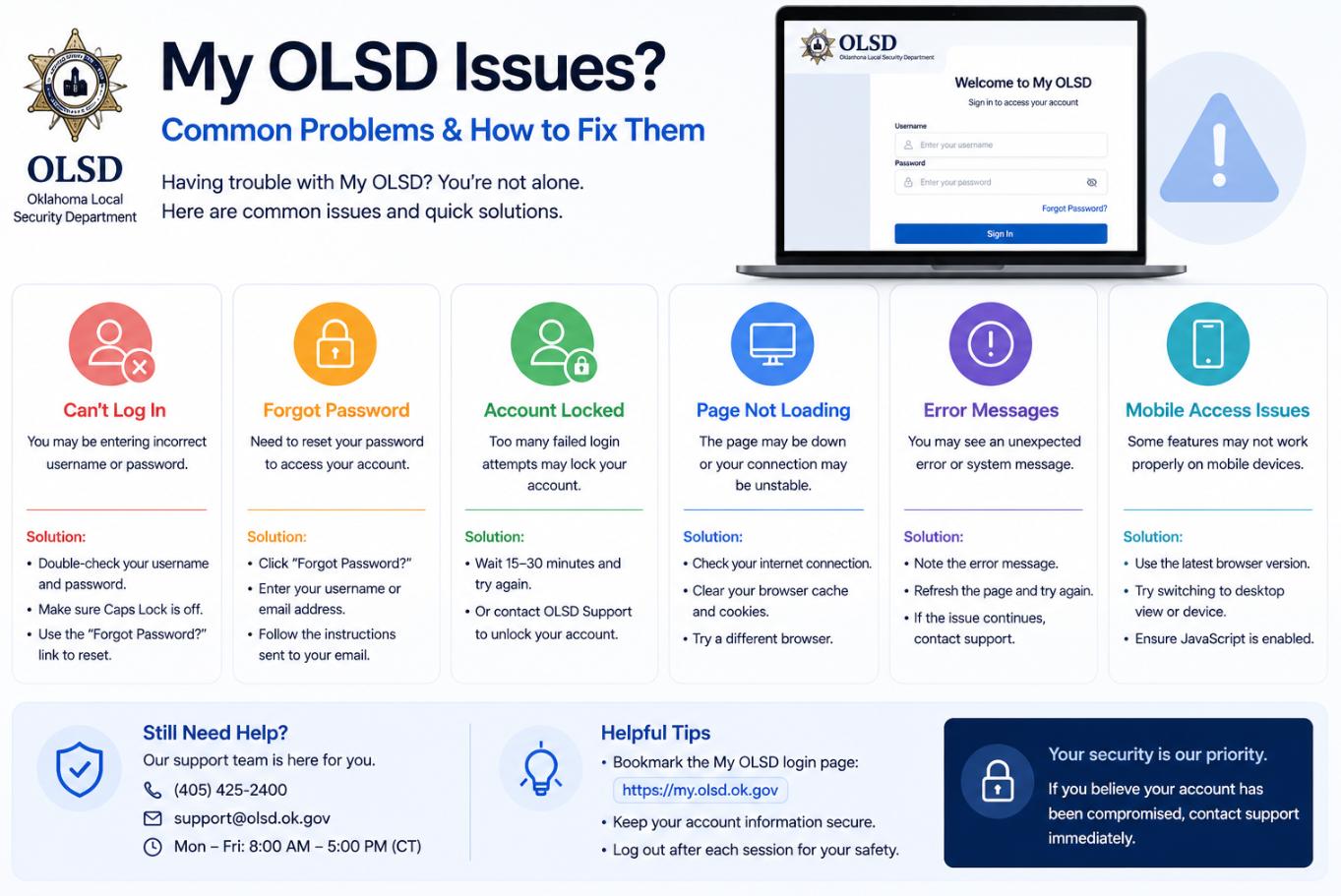
The reasons MyOLSD login fails are the ordinary reasons any enterprise SSO fails, filtered through the specific patterns of a school district.
Password issues are the leading cause. Students especially tend to forget passwords over long breaks. The district’s password-reset routine goes through the school building — a homeroom teacher, an office administrator, or the IT helpdesk in the school. Parents whose accounts appear locked or forgotten should contact the district or school office rather than trying repeatedly and triggering an account lock.
Browser and device issues are the next most common. Extensions that block trackers or cookies aggressively can interfere with SSO handshakes. Browsers with cleared cookies, private-window use, or an already-signed-in different Google account can produce a confusing sequence of redirects that end in a failed login. The reliable fix is to sign out of all Google accounts, close and reopen the browser, and try again — or to switch to a different browser entirely.
Network issues appear during large events — schedule releases, report-card windows, back-to-school registration — when portal load spikes. Persistent load-related failures should be reported to district IT rather than resolved individually.
Account provisioning gaps are the least common but the most confusing. A new student, a returning parent whose child changed schools, or a new hire may encounter a portal that says the account does not exist because it has not yet been provisioned in the SSO layer. This is an administrative issue that only the school or district can resolve.
What is actually inside the portal
New users encountering MyOLSD for the first time can feel disoriented by the density of the destination panel. The most important tools, by role, are worth knowing by name.
For students
Schoology has historically been the district’s primary learning management system. Assignments, class materials, grades, and teacher communication run through it. Google Workspace tools — Docs, Slides, Drive — are the shared production layer for actual student work, integrated with the LMS for submission. Clever, or a similar rostering layer, connects students to third-party apps their teachers assign. Study support tools, digital textbook access, and library resources appear alongside these.
For parents
Progress Book, or its district-specific equivalent, is the parent view onto grades, attendance, and course enrolment. A separate lunch account management tool handles cafeteria balances and dietary preferences. Communication is routed through FinalForms for permission slips and required documents, and through Blackboard Communications or Rooms for messaging with staff.
For staff
The staff view is broader and includes gradebook and attendance functions, student information system access, curriculum resources, HR and payroll, and internal communications. The exact tool mix depends on role — teachers, counsellors, administrators, and support staff each see a different subset.
The wider Ohio and national context
MyOLSD is one district-specific example of a pattern that has become almost universal across US public education. Nearly every large district in Ohio — Columbus City Schools, Dublin, Worthington, Upper Arlington, Hilliard — operates a similar single-sign-on portal wrapping some combination of Schoology or Canvas, Progress Book or Infinite Campus, Google Workspace, and a rotating set of third-party learning apps. The specific tool mix varies; the shape of the experience does not.
This convergence has upsides and downsides. Students moving between Ohio districts encounter roughly the same technology stack, which shortens onboarding. Parents whose children attend multiple districts (through split custody, moves, or open enrolment) learn one mental model that mostly transfers. Districts benefit from shared vendor relationships, better security scrutiny, and lower per-district investment. The downside is a slow standardisation of what learning looks like across school types, and a growing dependence on a small number of ed-tech vendors whose commercial decisions materially affect classroom experience. Both effects are worth being aware of for parents thinking about the wider technology environment their children move through.
Practical notes for parents
The single most useful habit for parents is checking the portal on a rhythm — weekly during the school year is enough — rather than reactively when something goes wrong. Steady low-effort monitoring catches issues early: missing assignments before they become failing grades, attendance patterns before they become absenteeism issues, communication threads before they escalate.
The next most useful habit is teaching students how the portal works rather than treating it as a parental tool. Middle and high school students should own their own view of the portal, understand what tools they use, and know how to recover from a failed login without needing a parent’s help. The transition is a small piece of digital adulthood that pays off across every subsequent educational system they will encounter.
FAQ
I forgot my password. What now?
Students should ask a teacher or office administrator at their school. Parents should contact the district office or their child’s school. Staff should contact IT. There is no self-service password reset for most role types, by design — school district accounts require identity verification that only a person can perform.
Can I access MyOLSD from home?
Yes. The portal is a public URL and can be reached from any internet connection. Some in-portal tools may behave differently outside the school network (for example, some testing platforms), but the login itself works from anywhere.
Why did the portal look different this year?
District IT updates the portal periodically, sometimes replacing underlying tools when contracts change or when a better option becomes available. Major changes are usually communicated in advance to families and staff.
Is student data secure inside MyOLSD?
The district is subject to FERPA and Ohio state student-data protections, which impose specific requirements on data handling and third-party integrations. Any tool accessible through the portal has been vetted at the district level. Individual account security still depends heavily on password practices and awareness of phishing attempts targeting school accounts.
Who do I contact if a specific tool isn’t working?
Portal-wide issues should go to district IT. Issues inside a specific tool (Schoology, Progress Book, a particular curriculum app) can often be resolved by the teacher using that tool. The escalation path is usually school-first, district-second.
A short closing note
MyOLSD is a small piece of infrastructure that carries a large share of the daily activity in a growing school district. Learning to use it fluently — not just as a login page but as an actual navigation layer for the tools it opens onto — is a modest investment for students, parents, and staff that pays off across every day of the school year.