Password Protect Excel – Four Ways and When to Use Each
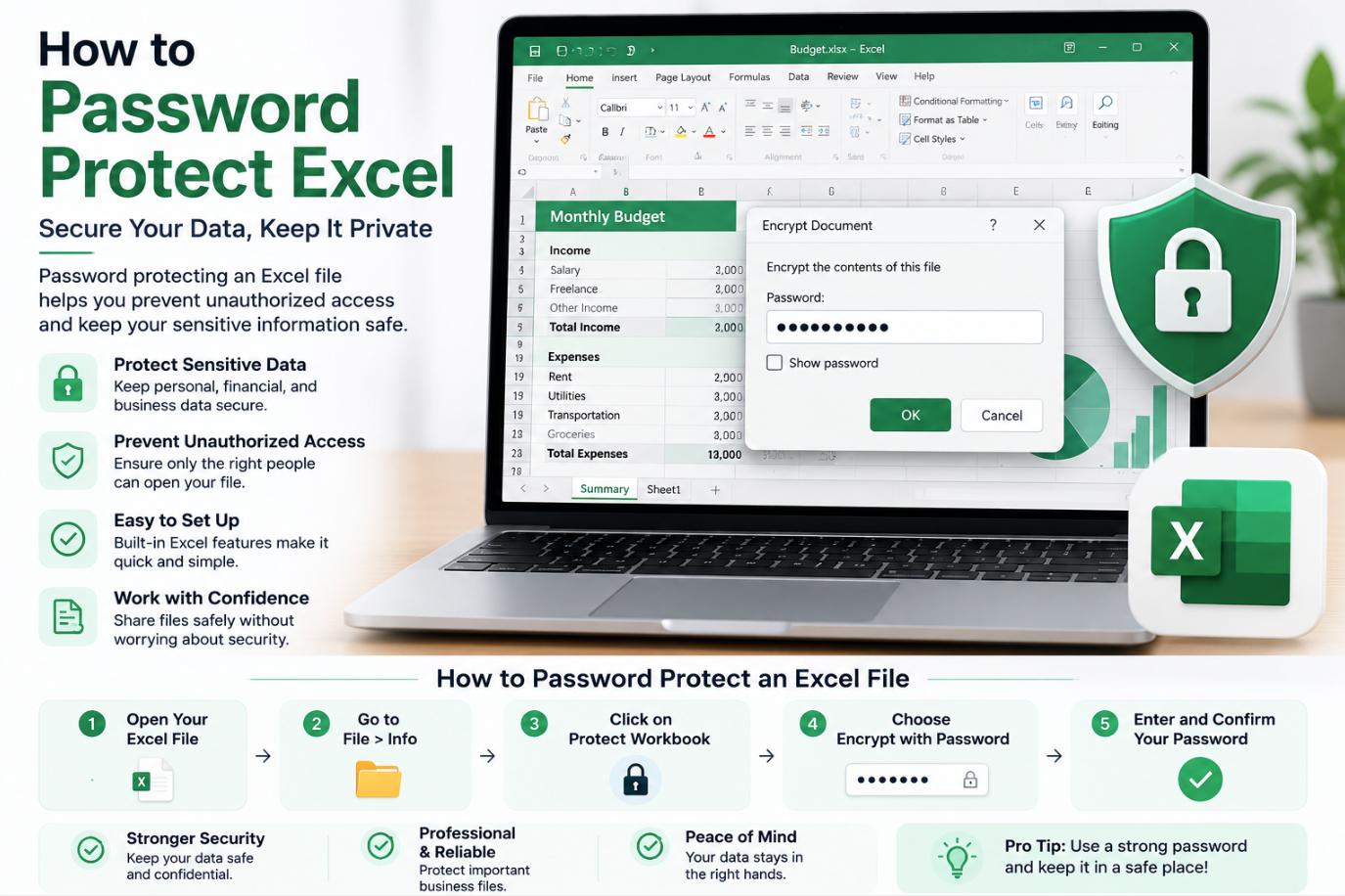
Password-protecting an Excel file is a three-minute task most people learn once and then reach for whenever the situation requires it. What is less obvious is that Excel offers several different kinds of protection — for opening the file, for editing it, for changing specific sheets, and for preserving structural integrity — and that these mechanisms differ substantially in what they protect against. Choosing the right one for a given use matters more than the raw ability to click through the dialog.
The four kinds of Excel password protection
Before touching any menu, it helps to understand what protection Excel actually offers. Each option targets a different threat model, and picking the wrong one produces a file that appears protected but is not.
Password to open encrypts the file itself. Without the correct password, the file cannot be read at all. This is the strongest option and the one to reach for when the file contains sensitive information that must not be exposed if the file is copied, emailed to the wrong person, or found on a lost laptop.
Password to modify lets anyone open the file in read-only mode but requires the password to make and save changes. This suits situations where the content should be visible but the author is the only person permitted to update it.
Sheet protection locks specific cells or a whole worksheet against editing, while leaving the file itself openable and readable. This is the option most commonly used to prevent accidental changes to formulas, formatting, or structural elements in shared workbooks.
Workbook structure protection prevents users from adding, deleting, hiding, unhiding, or reordering sheets. Useful for reports that circulate across an organisation where the shape of the workbook must remain stable, but where cell-level editing is expected.
How to add each type — step-by-step
The following steps apply to Microsoft Excel on Windows and macOS in current supported versions. Older versions may differ slightly, and Excel for the web offers a reduced subset of these features.
Setting a password to open a file
- Open the workbook.
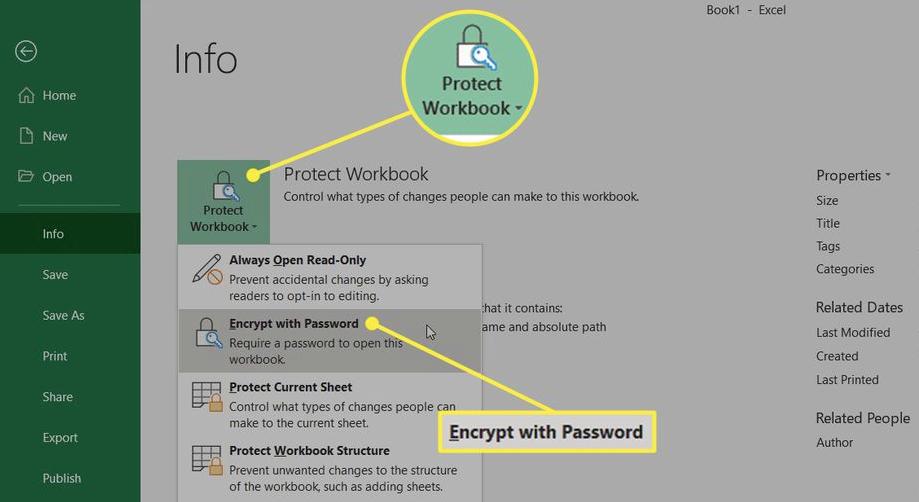
- Go to File → Info → Protect Workbook.
- Choose Encrypt with Password.
- Enter a password. Excel will prompt you to confirm it once.
- Save the file. The password is now embedded in the file itself; anyone opening it will be prompted.
The file is now encrypted using AES-256 (in current Excel versions), which is a genuinely strong cipher. The security of the file becomes the security of the password, which is why password quality matters more than the mechanism.
Setting a password to modify
- Open the workbook.
- Go to File → Save As.
- In the Save dialog, click Tools → General Options (Windows) or the Options button (macOS).
- Enter a password in the Password to modify field. You can also set a Password to open here if you want both.
- Confirm and save.
Anyone opening the file without the modify password will see it in read-only mode. They can copy and paste the content elsewhere, so this is a workflow protection, not an information-security control.
Protecting a worksheet
- Select the sheet you want to protect.
- Go to Review → Protect Sheet.
- Enter a password (optional but recommended) and choose which actions users are still allowed to perform — selecting cells, formatting them, sorting, filtering, and so on.
- Confirm the password if set.
By default, all cells are locked when a sheet is protected. To allow editing in specific cells while protecting others, unlock those cells before enabling protection: select them, open Format Cells → Protection, and clear the Locked checkbox. Then enable sheet protection.
Protecting workbook structure
- Go to Review → Protect Workbook.
- Check Structure to prevent sheet additions, deletions, hiding, and reordering.
- Enter a password if desired.
This does not affect cell content — only the shape of the workbook.
Which method suits which situation
The choice among these mechanisms should match the actual risk being managed.
| Situation | Right protection |
|---|---|
| File contains sensitive personal or financial data | Password to open (encryption) |
| Shared report where only you should make changes | Password to modify (read-only for others) |
| Template with formulas that users must not overwrite | Sheet protection with locked formula cells |
| Multi-sheet dashboard whose tab structure must stay fixed | Workbook structure protection |
| Legal or compliance-sensitive file for internal use | Password to open + IRM/sensitivity label |
| File you must email to an unknown recipient securely | Encrypted file + password shared over separate channel |
Password choice matters more than the mechanism
Excel’s file-open encryption is strong. The mechanism does not have well-known cryptographic weaknesses in current versions. What it does have is exposure to the password itself. If the password is short, guessable, or reused from another compromised account, no amount of AES-256 will protect the file.
A short set of habits produces genuinely secure Excel files.
Use a randomly generated password of at least 16 characters. Password managers generate these in seconds. Manually chosen passwords are almost always weaker than they appear to the person choosing them.
Do not send the file and the password in the same email. Send the file through one channel — email, cloud sharing, or file transfer — and the password through a different one, such as an SMS message or a phone call. This is not paranoia; it is the baseline defence against email account compromise.
Do not reuse passwords from other systems. A password used to protect an Excel file should not also be used for email, banking, or corporate accounts.
Change or retire the password when the file’s protection is no longer needed. Encrypted files continue to be encrypted regardless of where they move; a password used in 2023 for a specific project is still needed to open the file today unless someone has actively removed it.
What Excel password protection does not protect against
Understanding the limits of the mechanism is as important as knowing how to enable it.
Sheet protection without workbook encryption can be bypassed relatively easily. Excel files are ZIP archives underneath, and sheet protection metadata lives in a plaintext XML file within that archive. Any determined user can rename the file to .zip, unpack it, edit the protection element, and reseal it. Use sheet protection to prevent accidental damage, not to protect information from someone motivated to bypass it.
Password to modify does not encrypt content. Anyone who opens the file in read-only mode can copy its contents into a new workbook. Use it as a workflow lock, not as a confidentiality control.
Even file-open encryption does not protect against someone who has both the file and the password. This is why the “do not share both in the same email” rule matters — email account compromise is the modal way encrypted files leak in practice.
Excel password protection also does not integrate cleanly with enterprise identity systems in the way that Microsoft’s Information Rights Management and sensitivity labels do. For organisational use, file-open encryption is a stopgap; centrally managed rights (via Microsoft Purview) are the durable solution.
Cross-platform considerations
Not everyone opening your Excel file is going to open it in Excel. That is worth building into any protection decision.
Google Sheets can open password-protected .xlsx files but will prompt for the password before displaying the content. Once opened, the file can be imported to Sheets and re-saved without the password. In practical terms, this means that anyone with the password and access to Google Drive can create an unprotected copy in seconds. This is not a security failure of either tool; it is a general property of file-open encryption — the moment the file is legitimately opened, its contents are available to whatever software opened it.
LibreOffice Calc reads and writes AES-encrypted Excel files, so recipients using LibreOffice can open them normally with the password.
Excel for the web has more limitations. It supports sheet protection and some workbook-level features but has historically had reduced support for full file-open encryption in the browser experience compared with the desktop app. Users whose recipients rely on the browser experience should test protected files before assuming they will open cleanly.
iOS and Android Excel apps generally handle password-protected files, but performance and prompt behaviour can vary across versions. Mobile-first recipients are worth testing with before assuming a protected file will land the way desktop delivery does.
Recovering access when the password is lost
The honest answer is that recovering a truly lost password on a strong file-open encryption is very difficult, and this is intentional. Excel’s encryption exists precisely so that even the person who set the password cannot recover it if they lose it.
For weaker protections — sheet protection, workbook structure protection, and older Excel versions using pre-2013 encryption — recovery tools exist and work. For modern file-open encryption with a strong password, no reliable recovery path exists other than restoring an unencrypted backup.
The practical implication is a preventative one. Store passwords for important encrypted files in a password manager the moment you set them. Do not rely on memory. Files that seemed important enough to encrypt in 2023 are exactly the files whose passwords will be needed and forgotten in 2026.
A working close
Password-protecting Excel is not one action but a small family of them, each fitting a specific situation. The mechanical steps are straightforward. The judgement calls — which protection to use, how to pick the password, how to distribute both the file and its key — determine whether the resulting file is genuinely protected or only appears to be. Getting those judgement calls right is the difference between a file you can rest easy sharing and a file whose protection is theatre.